
The Property Info page defines the core identity, branding, operating hours, communication settings, and billing configurations for a property. Information entered here controls how the property appears in the mobile app and dashboard, how users access the site, who receives notifications, and how billing documents are generated. This page is typically completed during initial setup but can be updated at any time as property details change.
Sections on the Property Info Page
- Key Details
- Dashboard Login Page
- Property Hours
- Property Closure Dates
- Images
- Communications and Notifications
- Email Sender Name Settings
- Website and Social Media
- User Registration
- Billing, Invoices, and Statements
Key Details
This section establishes the property’s core identifying information and localization settings.
Fields included:
Property Name: The official name of the property as shown throughout the app and admin dashboard.
Country: The country where the property is physically located.
Address: The full street address of the property.
City: The city where the property is located.
State: The state or region associated with the property’s address.
ZIP Code: The postal or ZIP code for the property.
Timezone: Determines how times are displayed for reservations, events, reports, and notifications.
Currency: Sets the currency used for billing, invoices, and financial reporting.
Region: Optional field used to group or categorize properties for reporting and analytics.
Additional Property Details: Free-form text field for internal notes or supplemental property information.
Dashboard Login Page
This section controls the branded web login experience for the property.
Fields included:
-
Site Short Name*
A unique identifier used to generate branded login URLs for both users and admins. This URL must contain only letters, numbers, and hyphens and is not case sensitive.Example: If you create a site short name of Acme, the URL would be
manage.cove.is/acmeormybuilding.cove.is/acme
Copy Link
Quickly copies the generated login page URL for sharing with users.Blurb For Login Page (Optional)
Optional text displayed on the login page, commonly used for welcome messages, access instructions, or basic site guidance.
Property Hours
Property Hours define default operating hours for amenities across the site.
Fields included:
Open Hours*
Set hours for each day of the week. Each day can be configured as: specific opening and closing times, 24 hours, or offline
These hours are used as the default schedule for amenities unless overridden at the individual amenity level.
Property Closure Dates
Holidays and other closures for building amenities can be managed in this section. Adding a date prevents all reservation-based amenities from being reserved for the entire day (12:00am–11:59pm). Closed dates appear on the reservation calendar as unavailable and cannot be selected for new bookings.
Notes:
Any existing reservations on a closure date are not automatically canceled, so property teams should review the amenity calendar and take action if needed.
Building Admins and Managers can override closure dates.
Images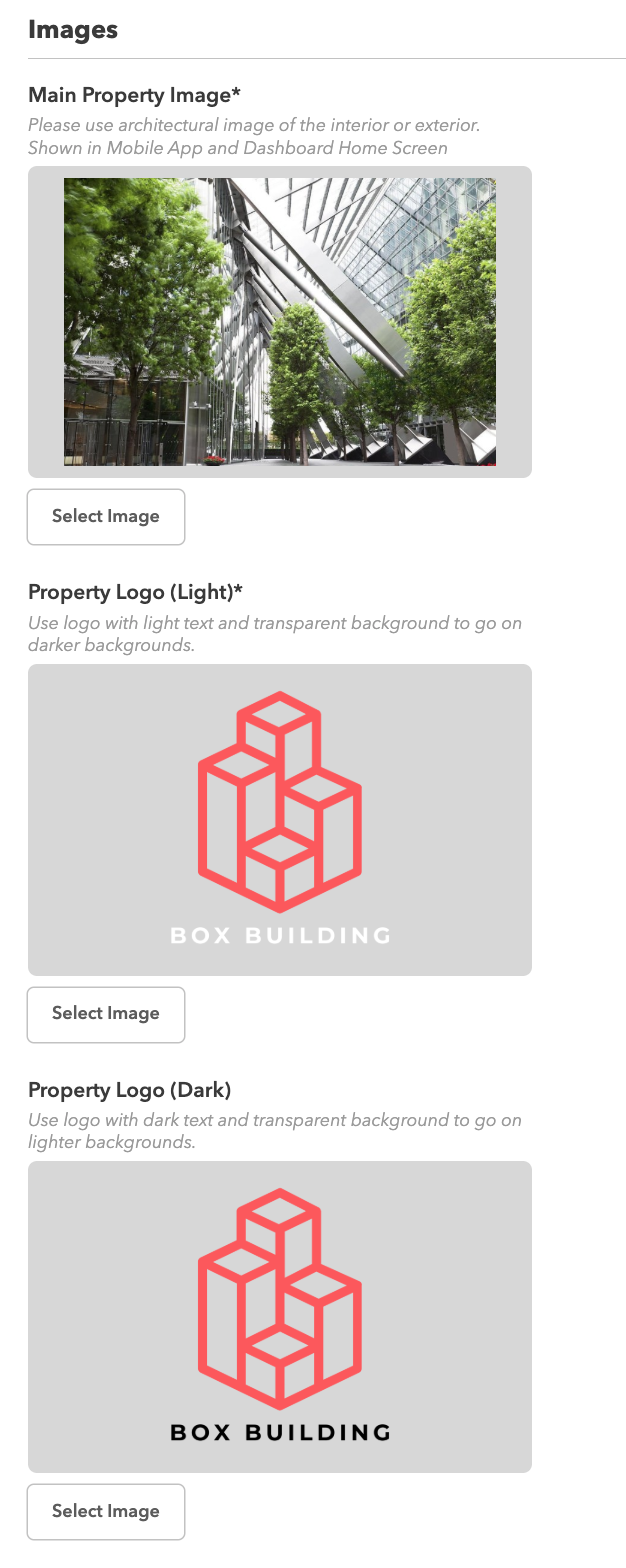
Images uploaded here control how the property is visually represented in the app and dashboard.
Fields included:
Main Property Image*
The primary visual for your property, ideally a professional architectural image (interior or exterior). Appears in the Mobile App and Dashboard home screen.Property Logo (Light)*
A logo with light-colored text and a transparent background, designed for dark backgrounds.Property Logo (Dark)
A logo with dark-colored text and a transparent background, designed for light backgrounds.
Communication and Notifications
This section determines where system-generated emails and notifications are sent.
Fields included:
Support Emails
Email addresses that receive support requests submitted through the app. Separate multiple addresses with commas.Notify Reservation Emails
Email addresses that receive notifications whenever a reservation is made by any user. Separate multiple addresses with commas.Property Team Emails
Users with these email addresses appear in the Meet the Team section of the mobile app. Separate multiple addresses with commas.
Note: Property team profiles are edited within each user’s profile in the directory. Once a profile is ready to appear in the Meet the Team section, add the user’s email address here and their profile will automatically populate in that section of the app.
Email Sender Name Settings
The sender name on outgoing emails can be configured for each message category. This helps tenants immediately understand who is contacting them and the nature of the message, especially important for emergency and time-sensitive communications.
For each category below, enter the name that should appear as the sender on outgoing messages. Whatever text is entered here will display as the sender name when tenants receive a communication of that type.
Configurable sender names include:
- Property Communications: General updates and operational messages from the property team
- Marketing Announcements: Newsletters, promotions, and community content
- Emergency Messages: Urgent alerts requiring immediate tenant attention
- Transactional Emails: System-generated messages such as booking confirmations and receipts
Sender name settings apply to plain text emails, Email Builder emails, and push notifications. If a field is left blank, the sender name defaults to the site name (or flavor name, if the property is whitelabeled).
Note: Sender names take effect when building admins select the corresponding announcement type while composing a new message.
Website and Social Media
These fields link users to external property resources directly from the app.
Fields included:
Property Website
The property’s public-facing website.Social Media Links
Links to the property’s social media profiles, including: Instagram, Twitter, Facebook, and LinkedInWork Order URL
A link that directs users to an external work order or maintenance request site.
User Registration
This section controls how users enroll and manage their profiles.
Fields included:
Enrollment Approval Enabled
Allows users to self-enroll and select a tenant, with enrollment pending approval by a tenant or property admin.Disable Profile Editing
Prevents users from changing their own name or photo in the app.Disable Tenant User Management
When Tenant User Management is enabled, tenant admins can be setup as User Managers, which allows them to create and manage users within their company. With this box checked, this feature is disabled so all user management flows through building team members.
Billing, Invoices, and Statements
These fields control how billing information appears and how charges are processed.
Fields included:
Remit To Address
Optional override for the address shown on billing documents such as invoices, tenant statements, and purchase orders.Billing Contact Phone Number
Phone number displayed on billing documents only.Tenant Billing Period
Defines the accounting period used for tenant reservation charges (annually, quarterly, monthly)Allow Credit Usage from Other Sites
Allows tenants from other sites to use credits when making reservations at this property.External Billing ID
Optional identifier used to connect billing records to external systems.External ID
Optional identifier used to connect the property to third-party platforms or integrations.