
The Cove Kiosk, when set up in Reserve mode, provides a dedicated room scheduling display for your property. It can be accessed on an iPad through the Cove Kiosk app or by opening kiosk.cove.is in a web browser. In Reserve mode, tenants and teams can use the tablet to view a space’s current and upcoming availability at a glance. The Reserve tablet does not allow users to create reservations and is intended only to display the room’s schedule, which must be managed through your building dashboard or mobile app.
Who can set this up: Building Managers and Building Admins
- Setting Up A Tablet in Reserve Mode
- Reconfiguring The App for a New Amenity Space or Adjusting The Configurations
Setting Up A Tablet in Reserve Mode
1. Download the Cove Kiosk app or open the URL in a browser
If using an iPad: Download the kiosk app
-
If using a browser on a tablet:
Open a web browser on your tablet
Navigate to this URL: https://kiosk.cove.is/
2. Log in to the Cove Kiosk Tablet App
Open the Cove Kiosk Tablet App
Log in using any Building Administrator’s email address
Retrieve the login code from your email and enter it when prompted
3. Configure the App
Follow the prompts in the app to configure the tablet:
Select Tablet Type: reserve
Select Site: choose your building
-
Select Space: choose the specific room that this tablet will represent
4: Set up Guided Access (recommended)
Guided Access is an Apple feature that prevents users from accidentally closing the app. We recommend enabling Guided Access on all Reserve tablets.
Go to Settings > Accessibility
Turn on Guided Access
Tap Passcode Settings, then tap Set Guided Access Passcode
Enter a passcode, then re-enter it to confirm
Passcode recommendations:
Use your building address number as the passcode.
Example: If the address is 1666 Connecticut Ave, use 1666 (or 001666 if the iPad requires a 6-digit code).-
Securely save your tablet passcodes so that other members of your team can access the tablets.
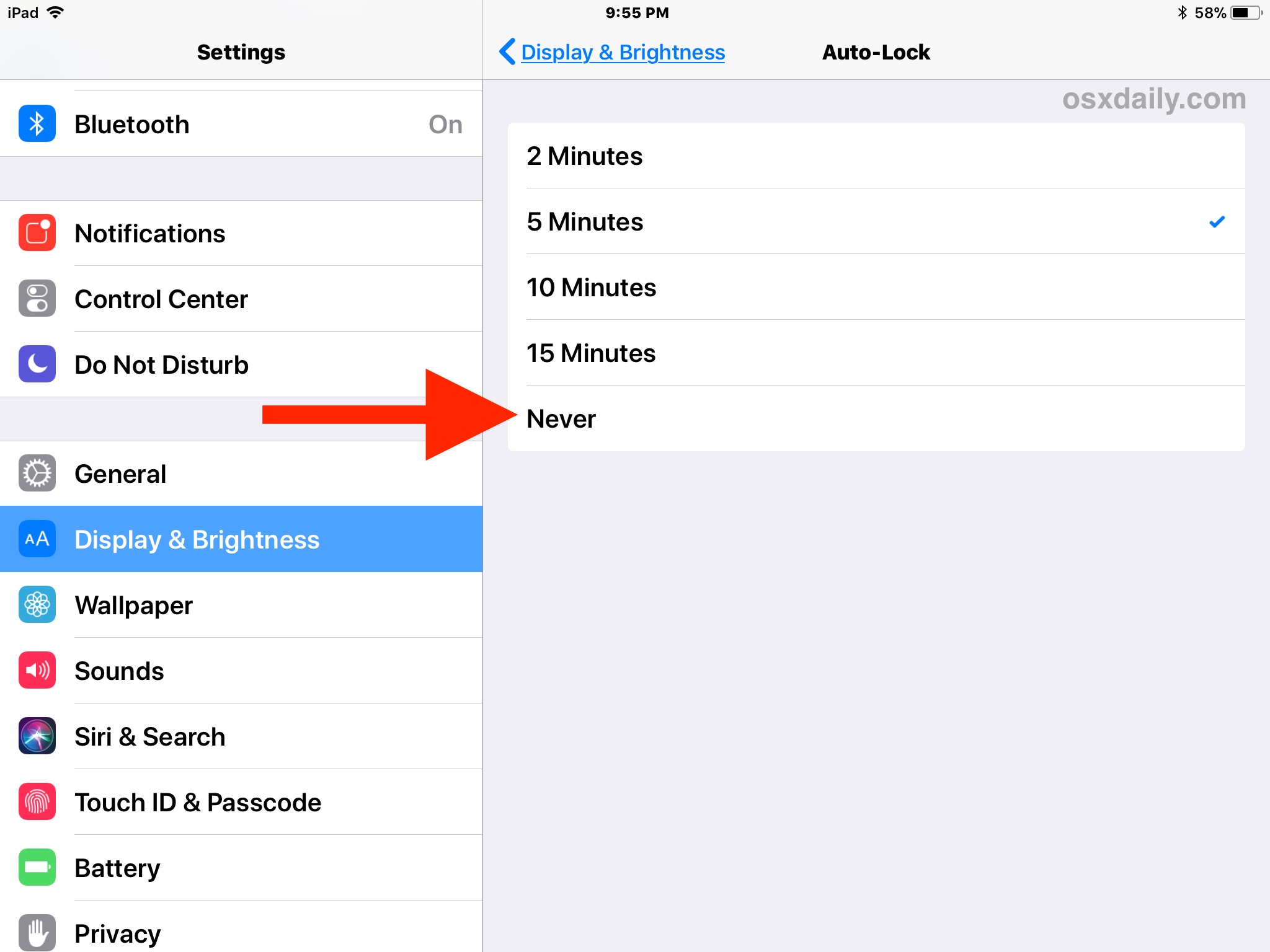
5: Turn off Auto-Lock
Turn off auto-lock so the tablet never goes to sleep.
Go to Settings > Accessibility
Tap Display Auto-Lock
-
Select Never
6: Finish tablet setup and start Guided Access
Open the Cove Kiosk Tablet App
Triple-click the Home button
Enter the passcode you created
Tap Start to begin Guided Access Mode
7. If you are using the Kiosk in a web browser, switch the browser to full screen mode.
Set the browser to full screen or kiosk-style display mode so the Kiosk App fills the entire tablet screen and reduces visible browser controls.
- Look for a full screen icon in the browser menu.
- Open the browser’s menu and select options such as Full Screen, Hide Toolbar, or Add to Home Screen.
- On some tablets, opening the page from a home screen shortcut can create a more app-like full-screen experience.
The exact steps vary by tablet and browser.
Reconfiguring The App for a New Amenity Space or Adjusting The Configurations
If you need to update the room configuration, change the selected space, or set up the tablet for a different amenity space, you can restart the app at any time.
To do this, tap the powered by cove logo 10 times. Restarting the app allows you to reselect the site, space, and tablet configuration as needed.